Click to build parent/child models
There are two methods to do it. You can either do it from the top right corner toolbar or from the extension side pane
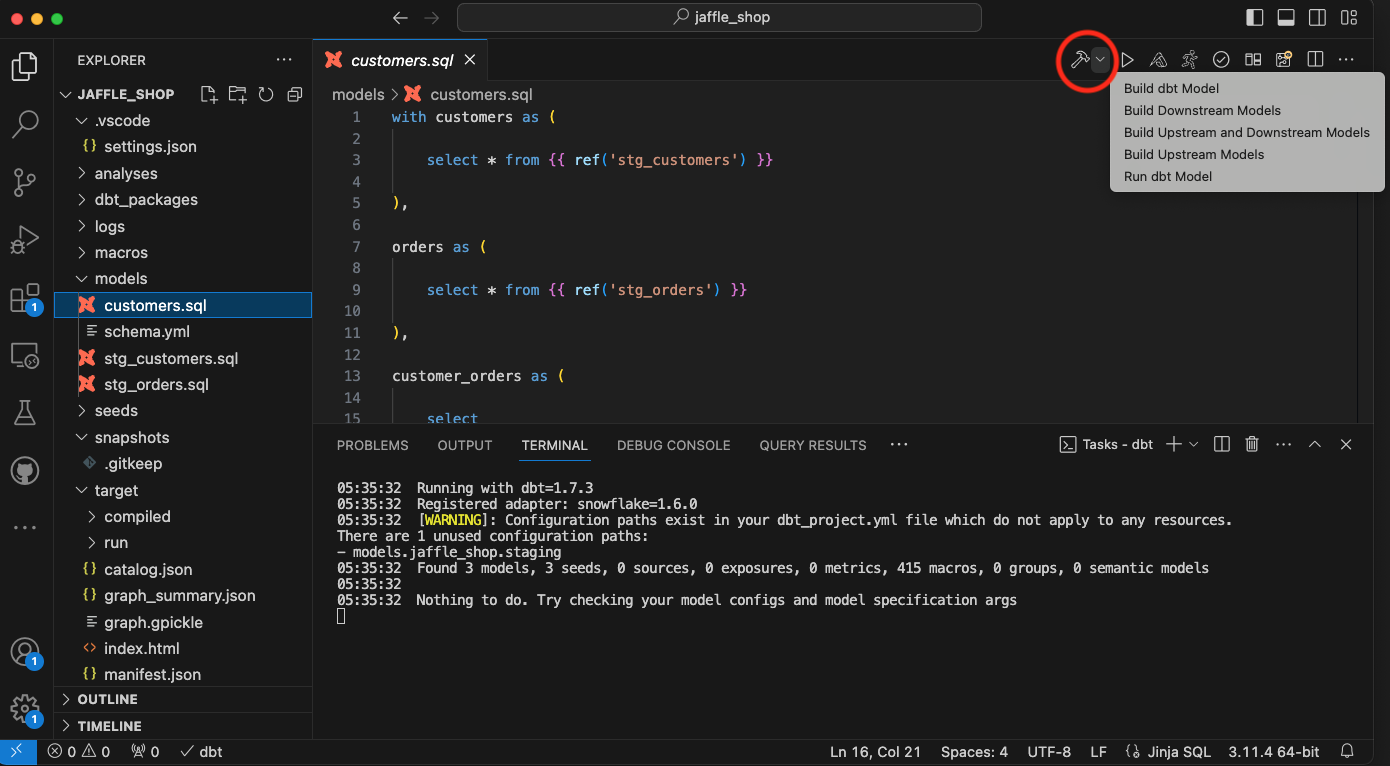
Method 1: Build and run models from the toolbar
The toolbar action to build models is present on the top right corner of the VSCode as shown in the image below:
Method 2: Run models from the side panel
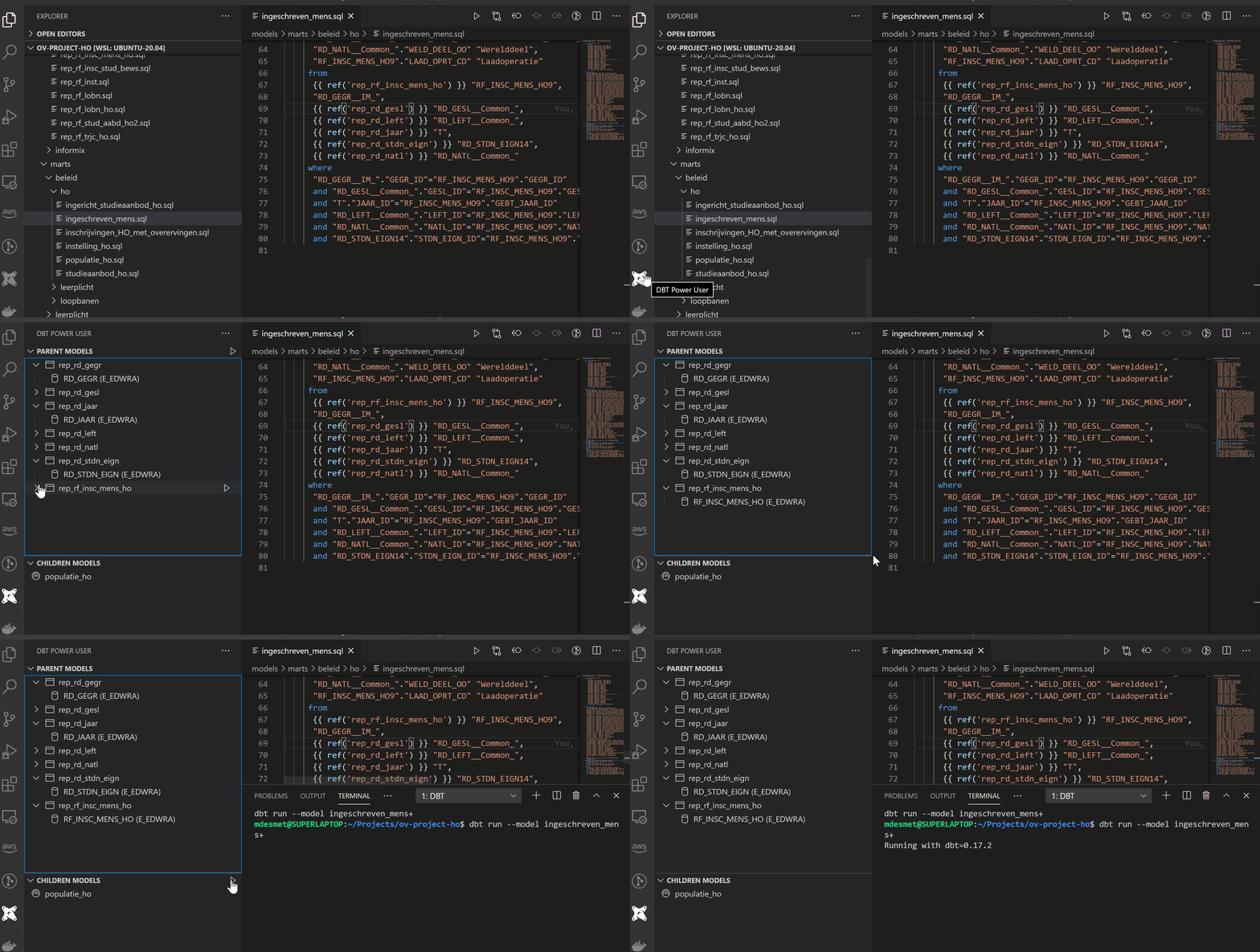
You cannot build models from the side panel
When a build fails
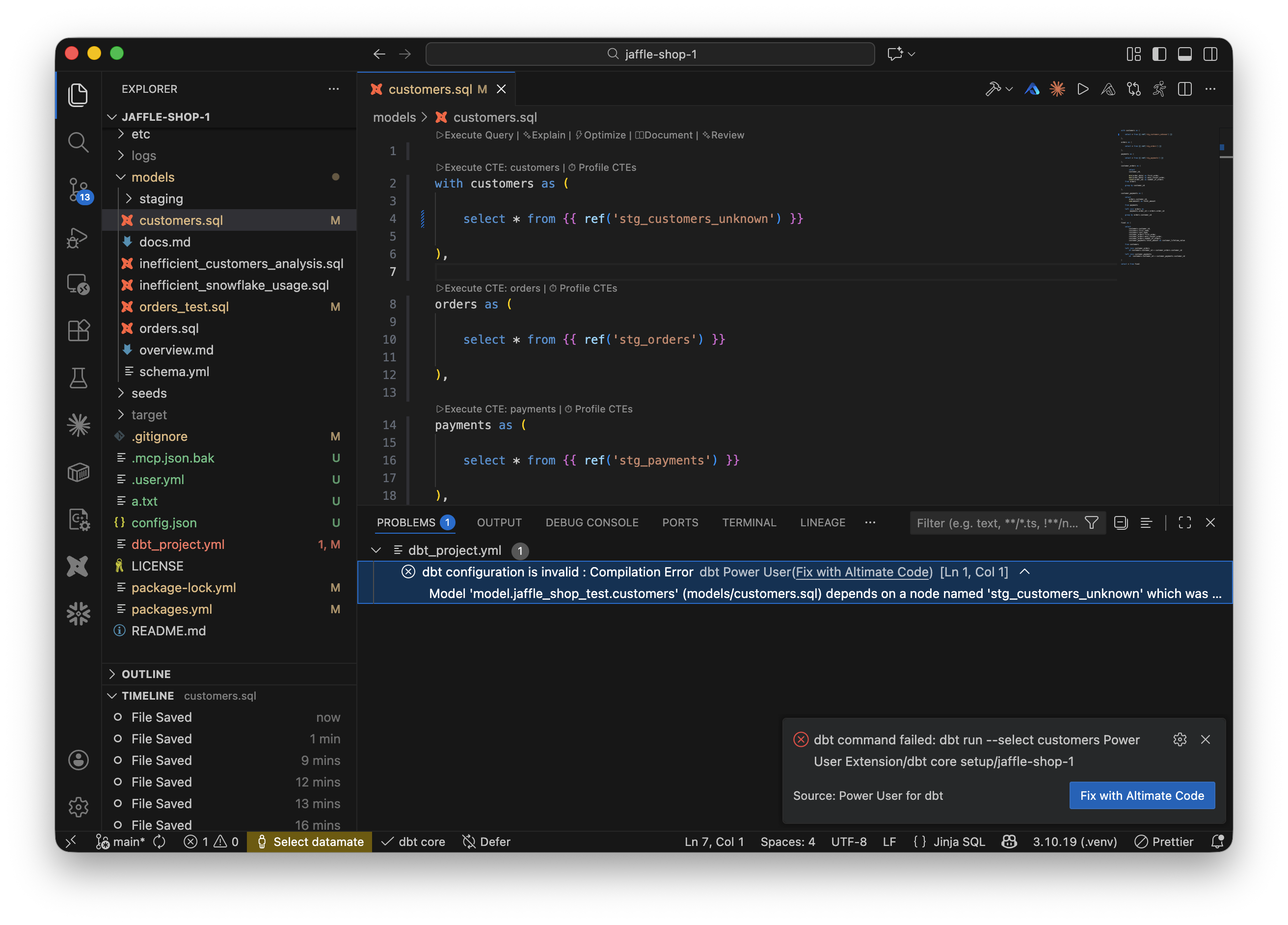
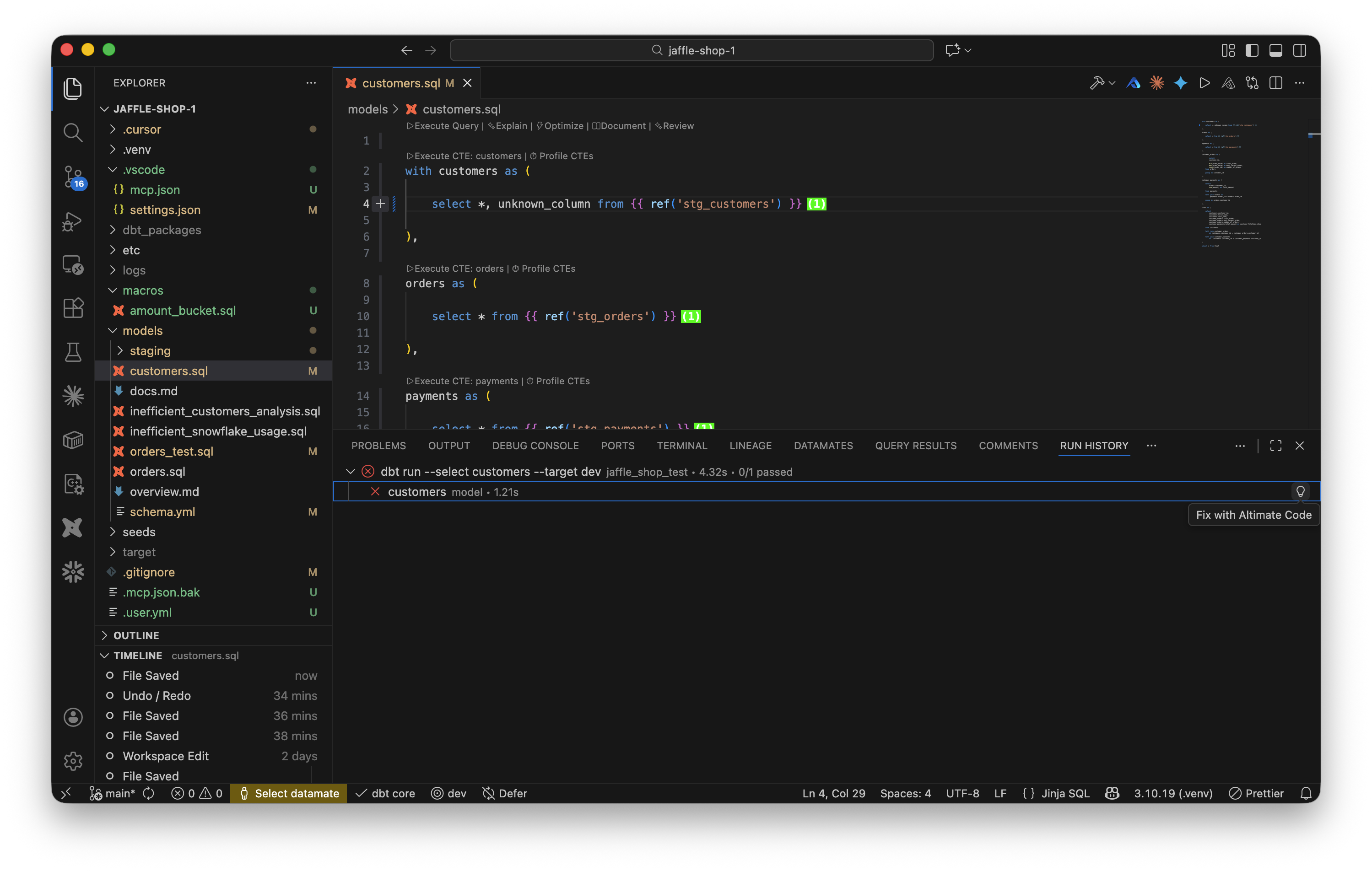
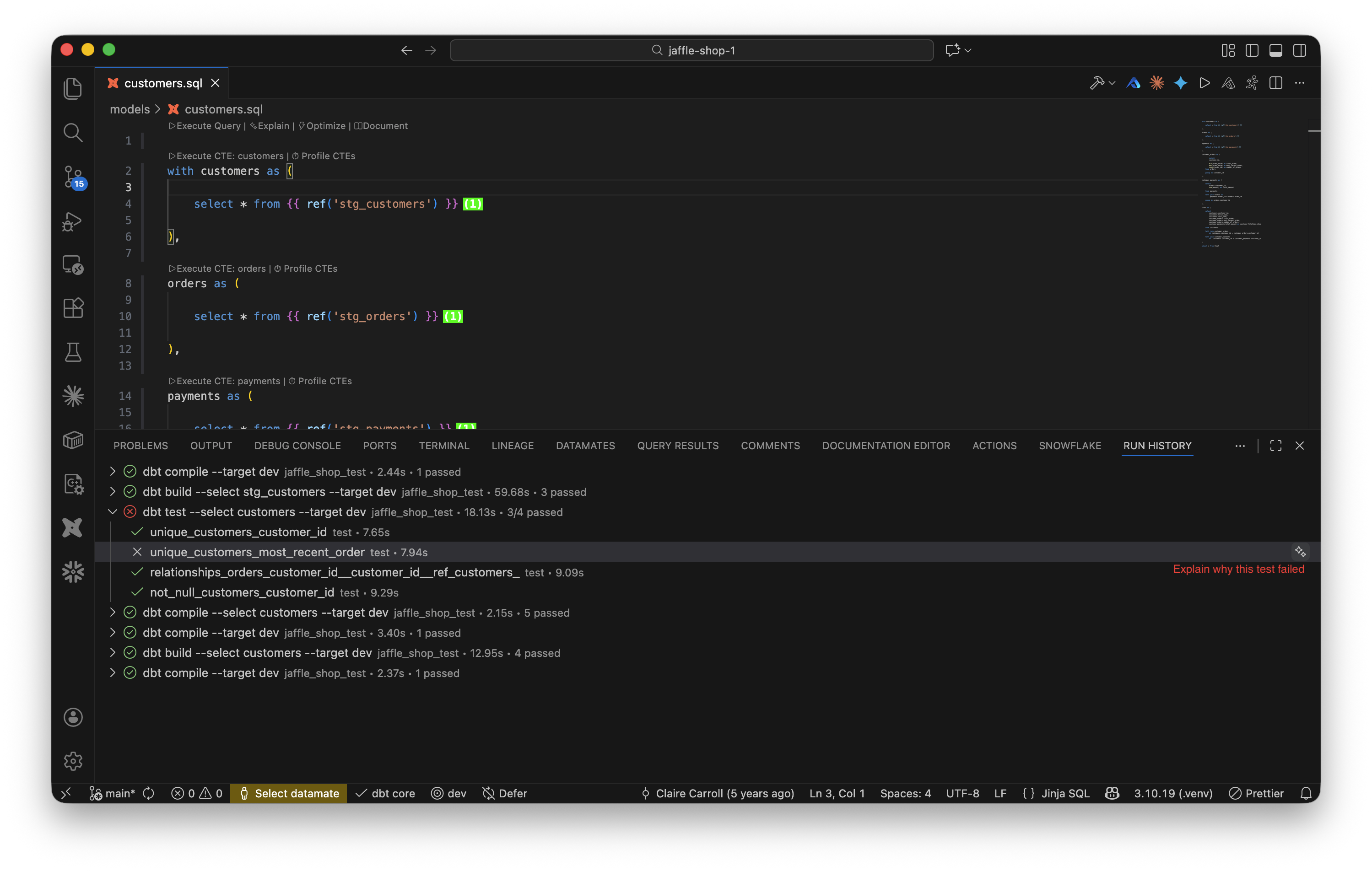
When dbt build, dbt run, or dbt test fails, the extension surfaces a Fix with Altimate Code button so you can jump straight into AI-assisted debugging without copying error text by hand.
There are three places the button appears:
| Failure point | Where you see it | Prompt sent to Altimate Code |
|---|---|---|
Model fails at runtime (run_results.json contains an error) |
Notification: dbt: my_model failed |
Run command + failed resource names/types + error messages |
dbt exits before generating run_results.json (broken ref(), missing node, config error) |
Notification: dbt command failed: dbt run --select my_model |
Exact dbt CLI command (machine paths stripped) + full stderr |
| Failed model / seed / snapshot in the Run History panel | Inline 💡 Fix with Altimate Code action on the failed row | Run command first, error in a fenced code block |