Troubleshooting
This guide covers common problems with the Altimate Workspaces extension. If it doesn't solve yours, contact support.
Run and Export a Debug Report
The extension can bundle its logs and diagnostics into a single zip file that you can send to Altimate support.
From the Command Palette (Ctrl+Shift+P / Cmd+Shift+P), run:
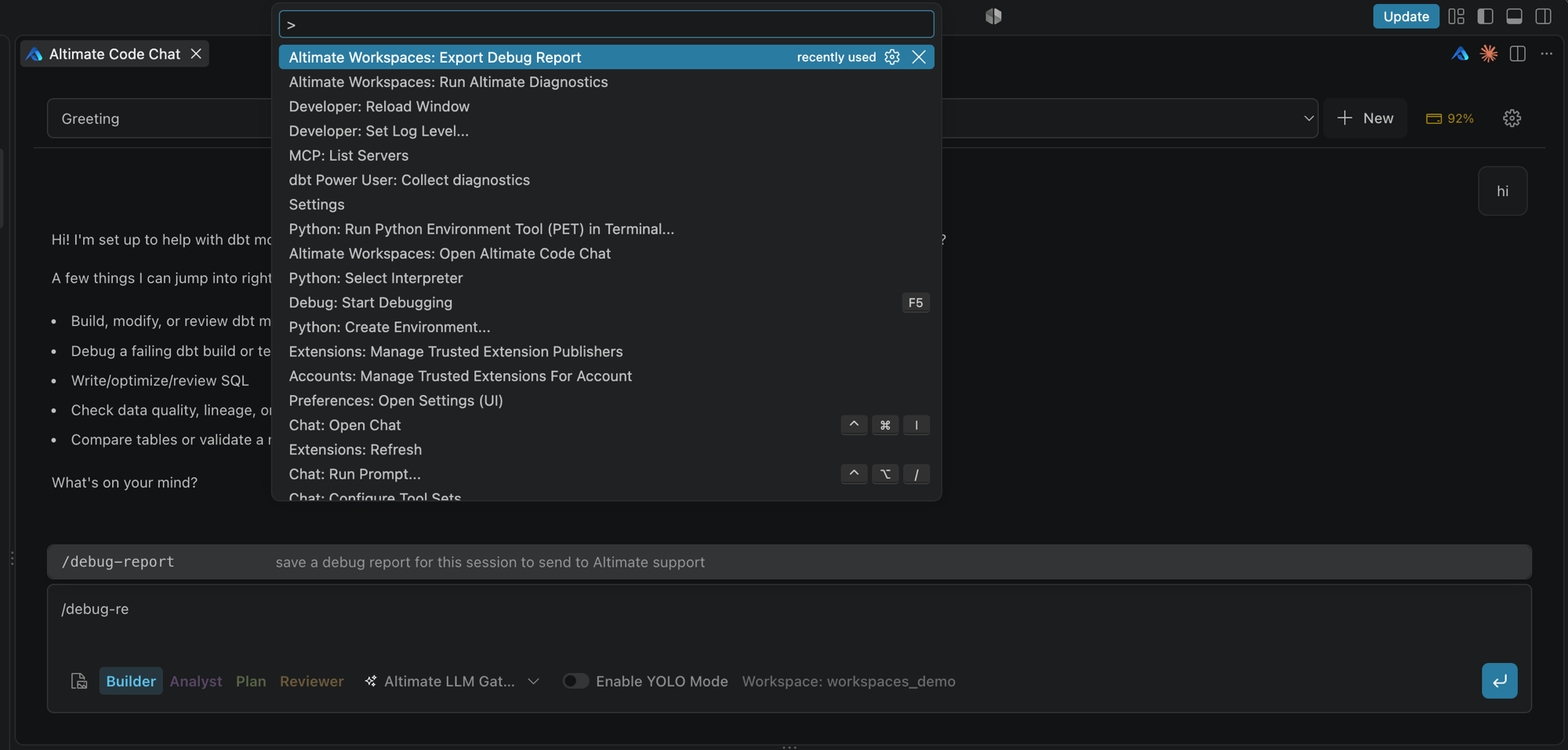
If an Altimate Code Chat tab is in focus when you run the command, the report includes that chat's session. To be sure the right conversation is included, use /debug-report in the chat instead.
The extension saves the report to your Downloads folder and shows where it saved it, with buttons to reveal the file or copy its path.
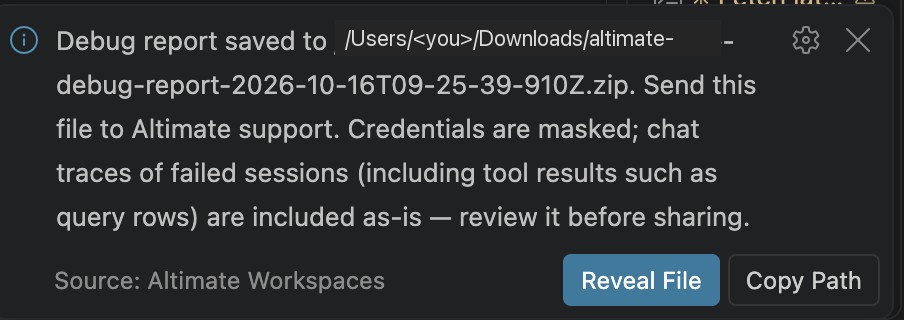
Debug Report from Altimate Code Chat
If you use Altimate Code Chat, there are two ways to generate and save the report:
-
Slash command. In the chat input, type
/debug-reportand send it. The report includes this chat's session, so support can see exactly what happened in the conversation. Use it when the chat gave a wrong answer, stopped responding or was slow, even if no error appeared.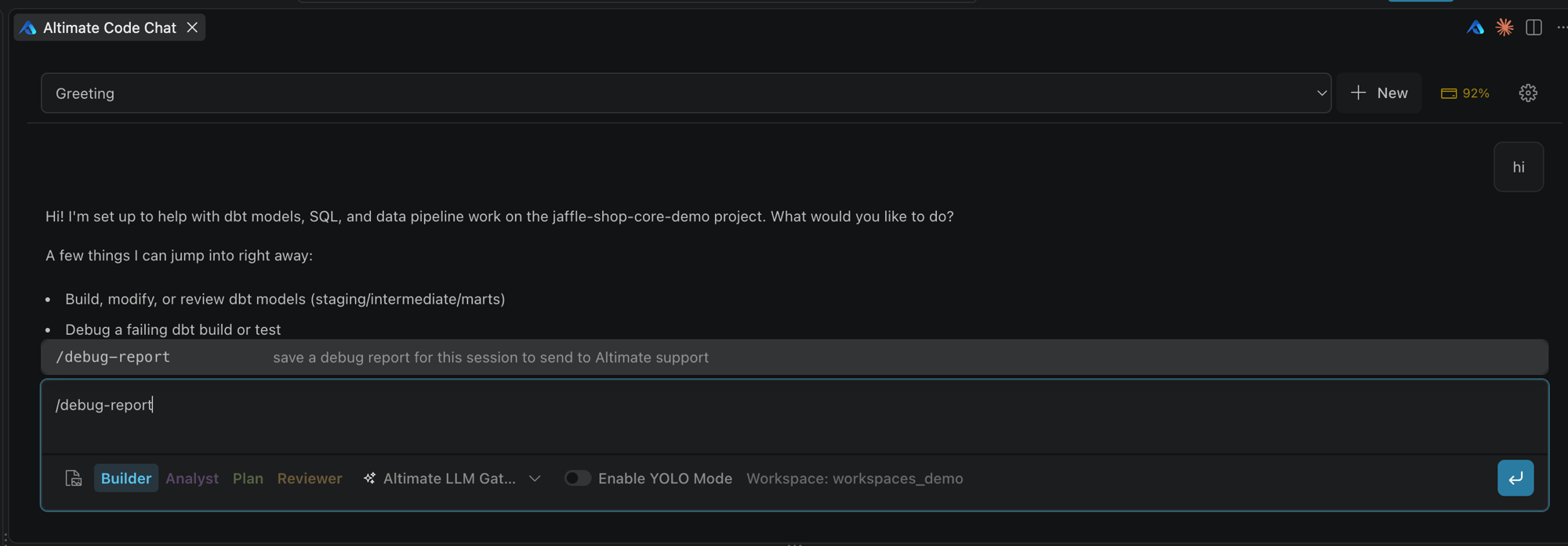
-
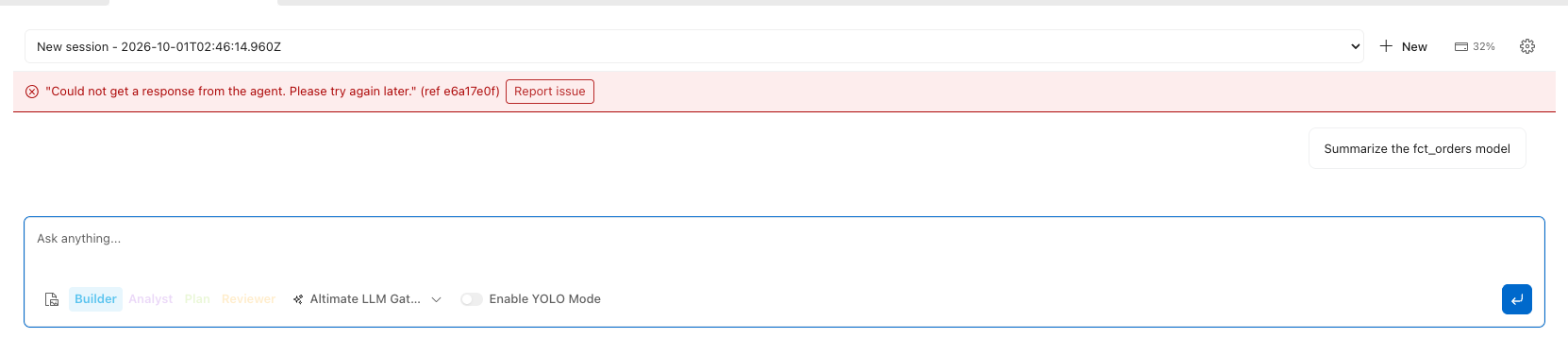
Report issue button. When a chat request fails, a Report issue button appears on the error banner at the top of the chat and next to the failed message. Click it to save a report for that chat's session.
Read the logs
To see what the extension is doing as it happens, open the Output panel (View → Output) and choose Altimate Workspaces from the dropdown.
You don't need to change the log level before exporting a debug report: the report already includes the extension's most detailed logs.
Installing
The extension isn't in the marketplace search
Search for Altimate Workspaces. Before version 0.10.0 it was called Datamates.
If it still doesn't appear:
- Check that your network doesn't block the marketplace.
- Update VS Code to 1.95.0 or later.
-
Install it from the command line:
Installation fails
- Restart VS Code and try again.
- Check that you have free disk space.
- Install it from a file instead: download the
.vsixfrom the extension's Open VSX page, then runcode --install-extension <file>.vsix.
The extension is installed but not working
Symptoms: no Altimate Workspaces: commands in the Command Palette, or the Altimate Workspaces panel is empty.
- Restart VS Code, or run Developer: Restart Extension Host.
- Check that VS Code is 1.95.0 or later.
- Check that the extension is signed in and a workspace is selected. The status bar shows the workspace, or Select workspace. See Set up VS Code.
-
If it's stuck, reset its onboarding state in your settings and restart:
The MCP server isn't working
Symptoms: the diagnostics show the server offline, tools don't appear in your agent, or chat requests time out.
- Run Altimate Workspaces: Run Altimate Diagnostics and check the server status and URL.
- Check that
altimate.disableMcpServerisn't set totrue. - Check that VS Code can make network connections. On a corporate network, check your proxy settings.
- Disable and re-enable the extension, or restart VS Code.
Some tools are missing
- Open the Altimate Workspaces panel (in VS Code's bottom panel) and check which workspace is selected.
- In the web app, open that workspace's Integrations tab and check that the integration is added and has the capabilities you expect.
- Some integrations need software on your machine. See Integrations.
Can't connect to a database
- Check the connection's details (host, port, user, password) in the workspace's integration settings.
- Check the database is reachable from your machine: firewall rules, VPN, and so on.
- Try the same query in your usual database client, to rule out permissions.
dbt problems
Symptoms: models aren't detected, compilation fails, or the profile isn't found.
- Check dbt is installed in the Python environment the integration uses:
dbt --version. - Check the project path points at the folder with
dbt_project.yml, and that your profile and target are set. - See the dbt integration settings.
Network checks
Check that your machine can reach the Altimate API:
If you're on an Enterprise plan with its own URL, check that URL instead. To check a database host, use nc -vz <host> <port>.
Start over
If nothing else works, reinstall the extension:
-
Uninstall it:
-
Install it again from the marketplace, and sign in again.
Getting help
Before you contact us, note your VS Code version, the extension version, your operating system, the exact error messages and the steps that cause the problem. Export a debug report and attach it: it covers most of this.
Remove passwords, tokens and other secrets from anything you send.