Setup dbt Cloud
For dbt Cloud users, Altimate can automatically sync artifacts (manifest.json, catalog.json) from your dbt Cloud runs using the dbt Cloud API. This eliminates the need for manual file uploads or CLI commands.
Please note that this lineage and documentation in UI functionality is not yet supported with dbt 1.8
Prerequisites: Create a dbt Cloud Service Token
Before setting up the connection, create a service token in dbt Cloud with Job Viewer permission. This grants read-only access to the Jobs API for fetching artifacts (manifest.json, catalog.json) from your dbt Cloud runs.
- Click your account name in the left menu and select Account settings
- Select Service Tokens from the left sidebar
- Click + New Token
- Enter a descriptive name (e.g., "Altimate Integration")
- Assign the Job Viewer permission and select the projects you want to sync
- Click Save
- Important: Copy and save the token immediately — you won't be able to view it again
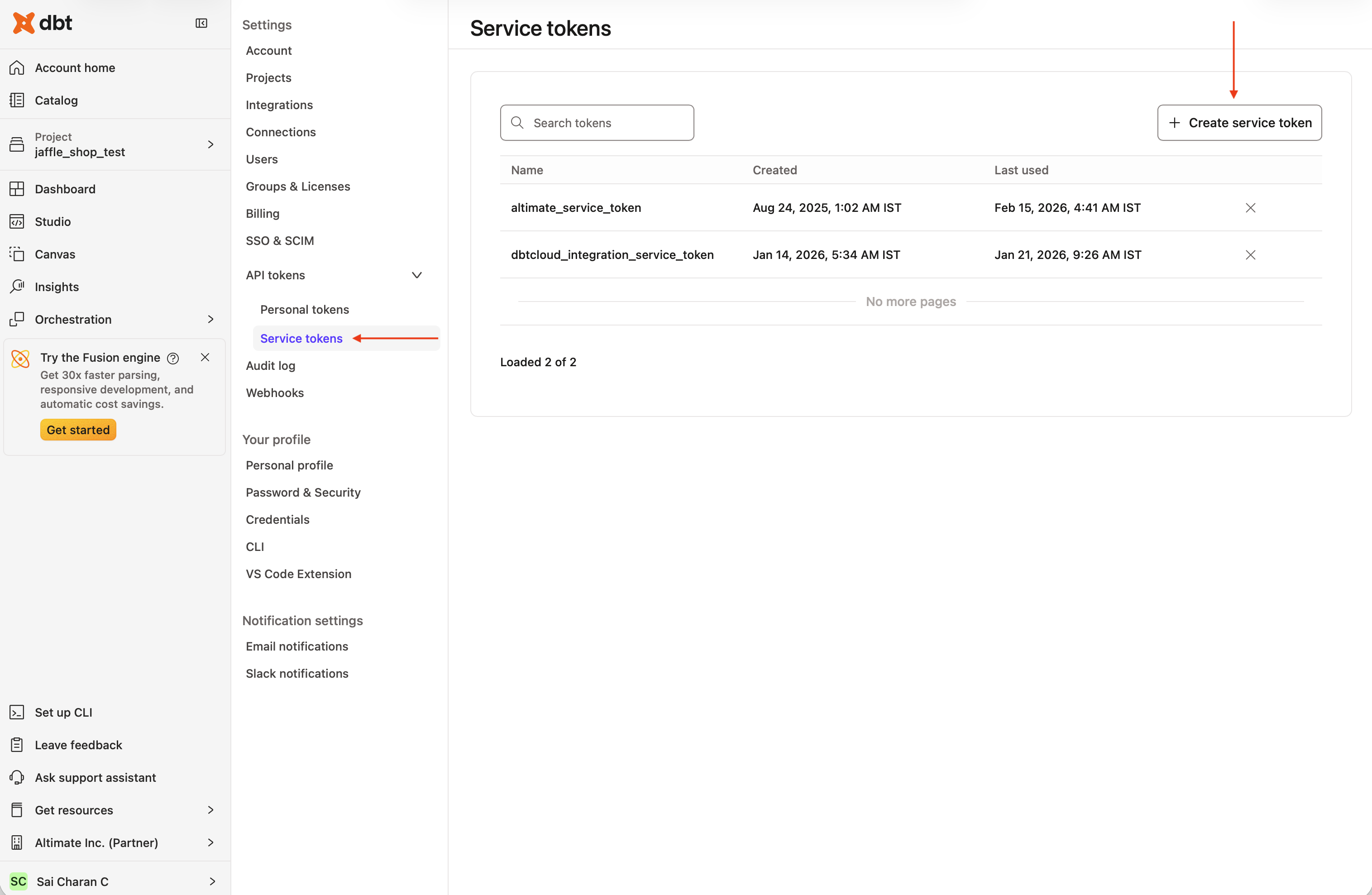
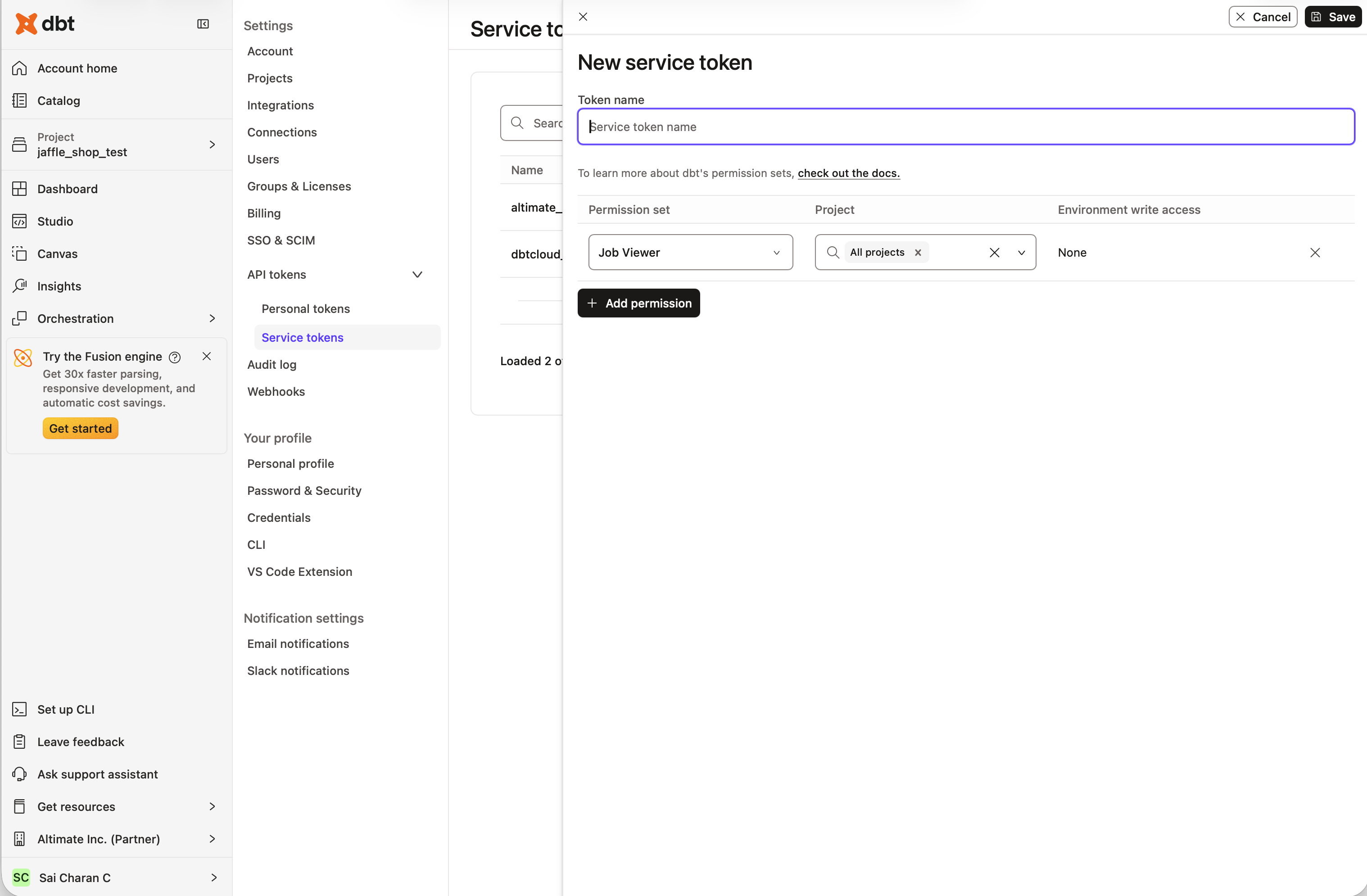
Permission availability may vary by dbt Cloud plan. Refer to the dbt Cloud Service Tokens documentation for details.
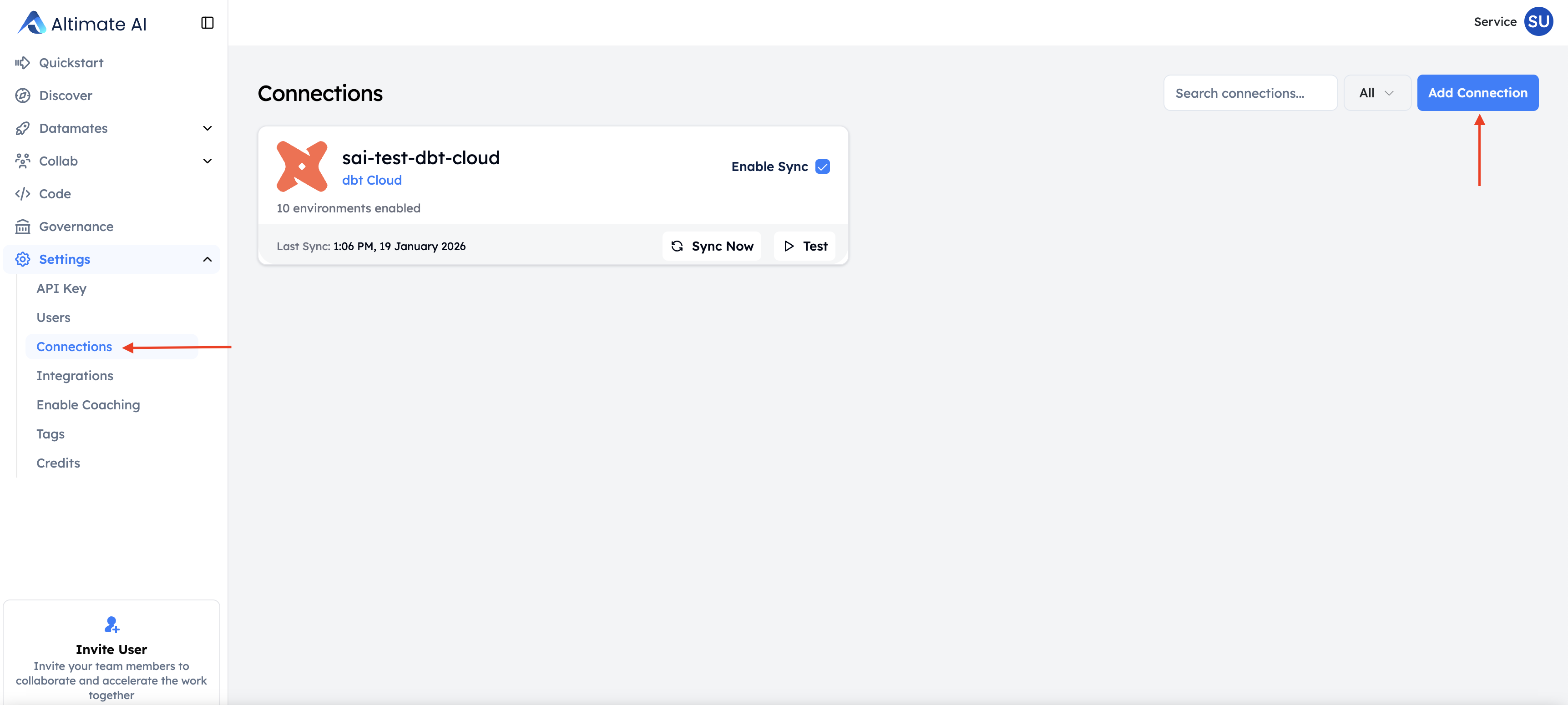
Create a dbt Cloud Connection
- Navigate to Settings -> Connections and click Create new connection
- Select dbt Cloud as the connection type
- Provide the required connection details:
- Service Account Token: Paste the token you created in the prerequisites step above
- Account ID: Available at
https://cloud.getdbt.com/next/settings/accounts/{{account_id}} - Custom URL (optional): For custom dbt Cloud instances (defaults to
https://cloud.getdbt.com/api/v2/)
- Click Test Connection to verify your setup
- Configure the sync schedule:
- Scheduled: Sync artifacts on a regular schedule. Select from Daily, Weekly, or Monthly frequency options and choose the time (UTC) when sync should occur (e.g., Daily at 12:00 AM UTC)
- Real-time: (Coming soon) Immediate sync when dbt Cloud runs complete
- Click Create Connection
After creation, your dbt Cloud projects and environments will be automatically discovered.
Automatic syncing keeps your documentation and lineage always up-to-date without manual intervention.
The dbt Cloud connection deletion has a processing delay of a few hours. If you need to recreate the same connection immediately, contact us.