Preview query results
You can preview the resulting data and SQL query from your code with the extension, export it as CSV and do further analysis. You can also use Altimate Code to explain your SQL or to profile a query for performance.
Preview results, export and analyze
You can preview results for the entire dbt model or select part of the dbt model to preview results only for that selection. After you select, Press Cmd+Enter (Mac) or Control+Enter (Windows/Linux) to run a query.
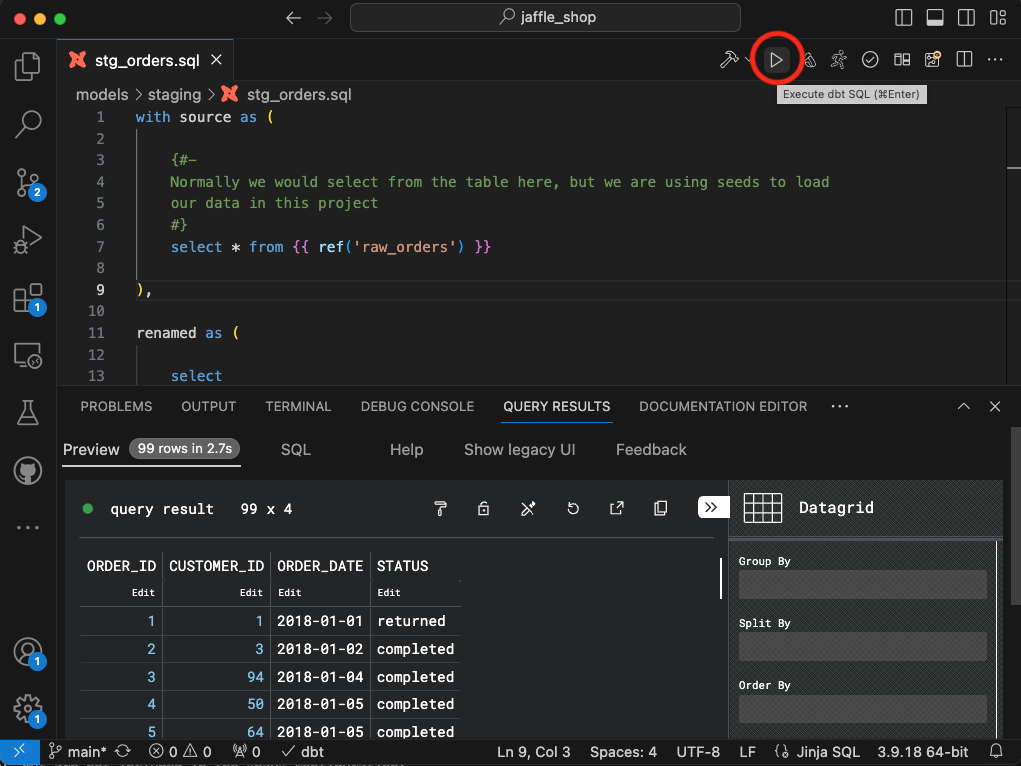
You can also preview query results via "execute dbt SQL" operation from the toolbar on the top right corner. You have to click on the "play" button as shown in the image below.
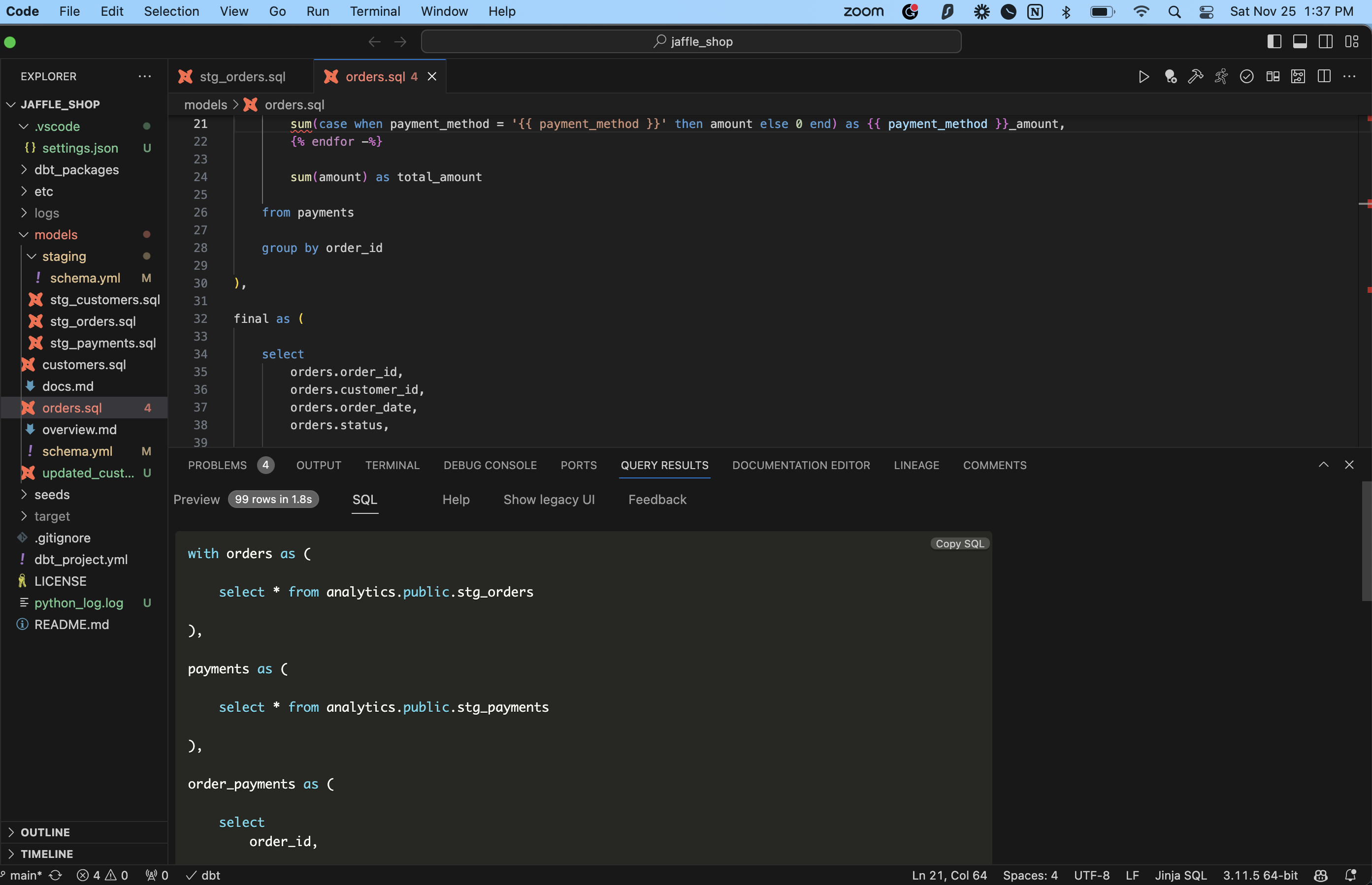
You can view and copy the SQL query that was executed to get the data results.
In order to view executed SQL query, you need to click on SQL tab inside "Query Results" bottom panel.
There is a copy SQL button also, it becomes visible only when you hover over the top right corner.
Configure settings for query preview
There are multiple actions available as actions on the top of query results preview window. Please click “configure” button to make it visible.
| Action | Details |
|---|---|
| Dark Mode | You can change configuration of preview results display to light, dark, solarized etc. display modes |
| Scroll Mode | Free scroll or aligned scroll |
| Read only | Read only or editable mode (Note: editable mode doesn’t save values in the database) |
| Reset | Reset button to reset the view |
| Export | You can export the data in CSV format |
| Copy | You can copy the data shown in the preview. There are multiple options like CSV and JSON format |
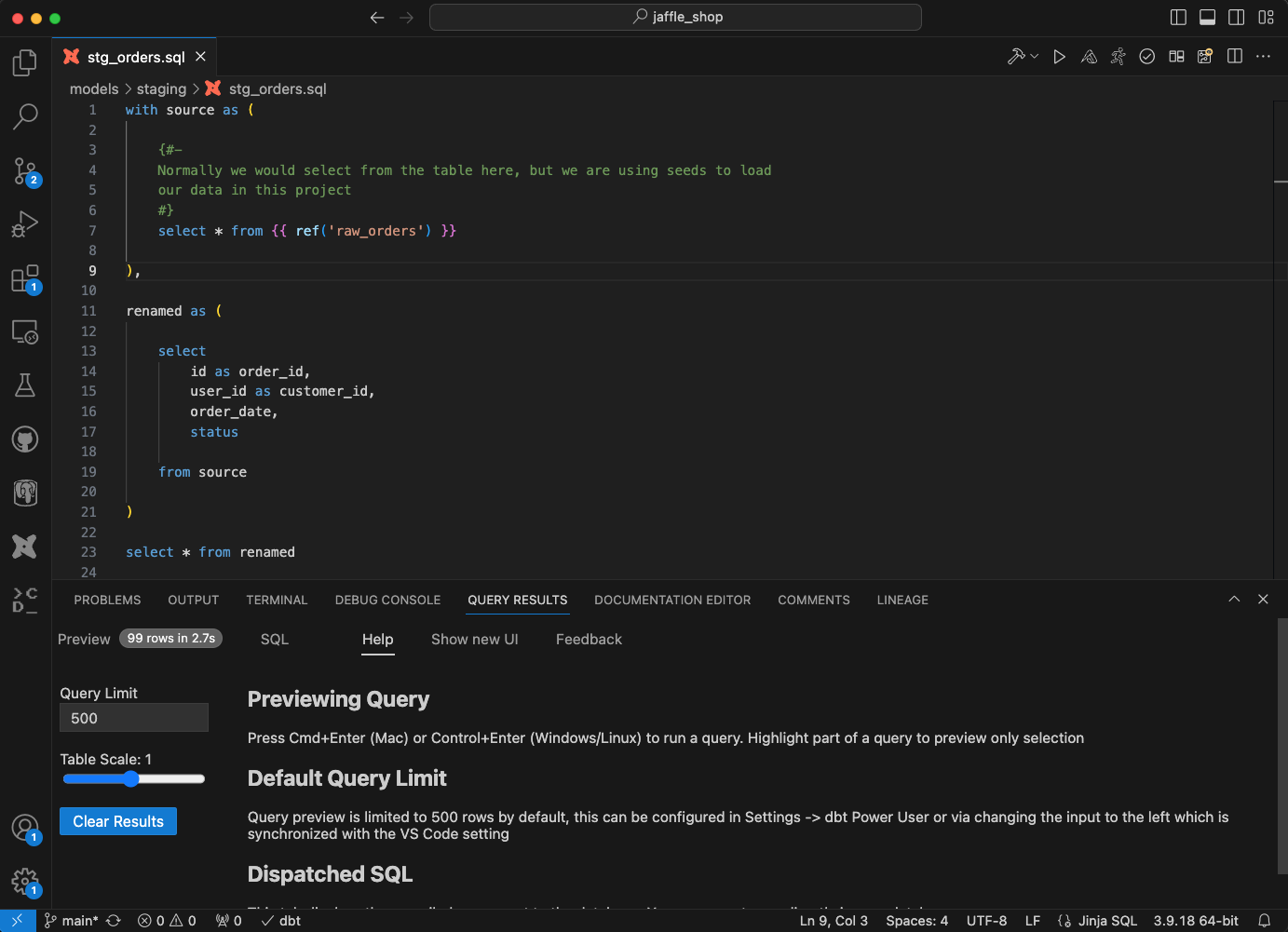
Query preview is limited to 500 rows by default, this can be configured in Settings area or you can configure query results options in "Help" tab in the bottom panel as below.
You can also change table zoom level with 'scale' setting so you can see more columns in a single view or you can clear results by clicking “clear results” button.
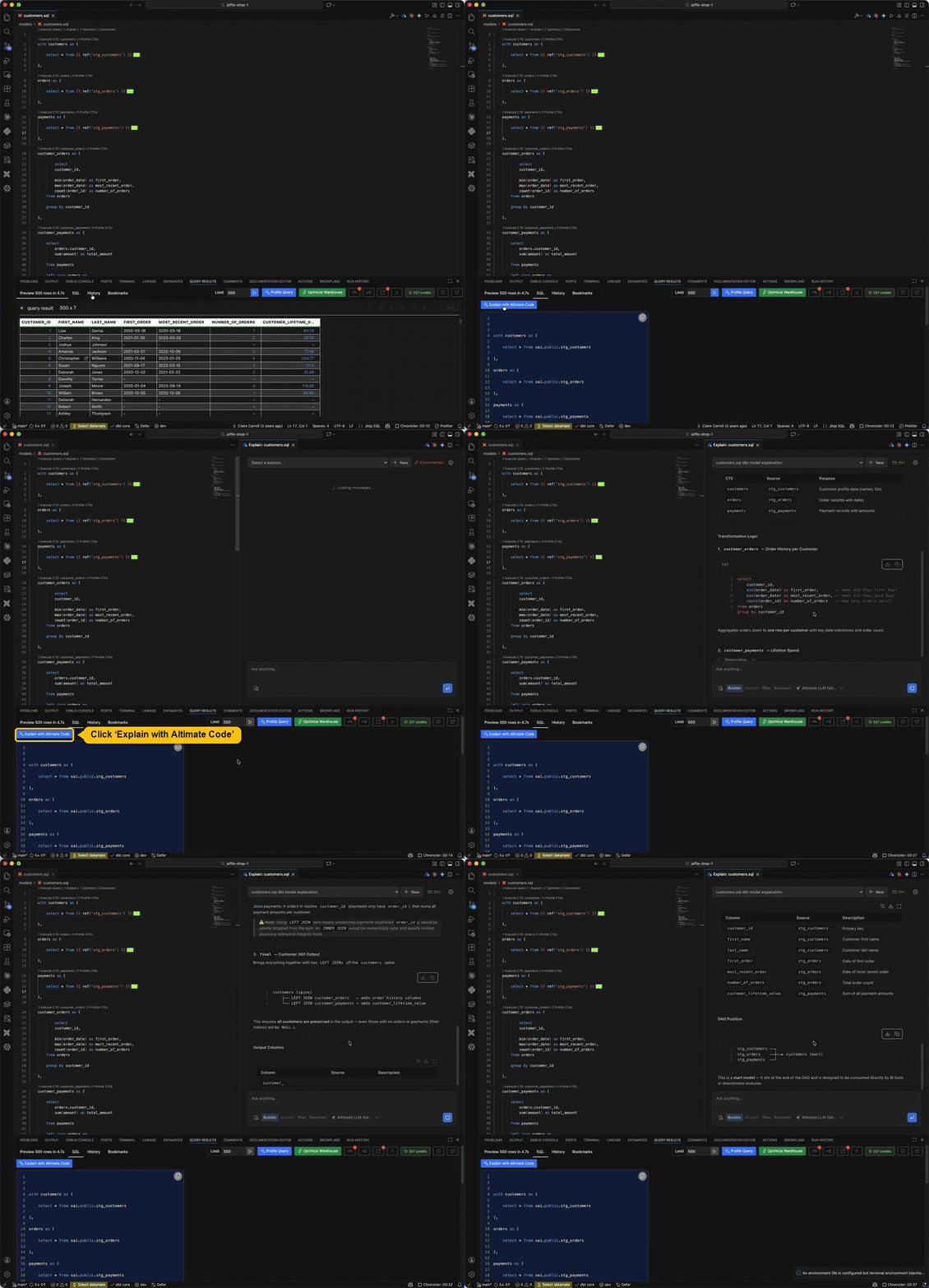
Explain with Altimate Code
Open the "SQL" tab inside the "Query Results" bottom panel and click the "Explain with Altimate Code" button shown above the SQL. Altimate Code opens in a chat and explains the code from the file you have open in the editor, or the part you have selected.
Profile this query
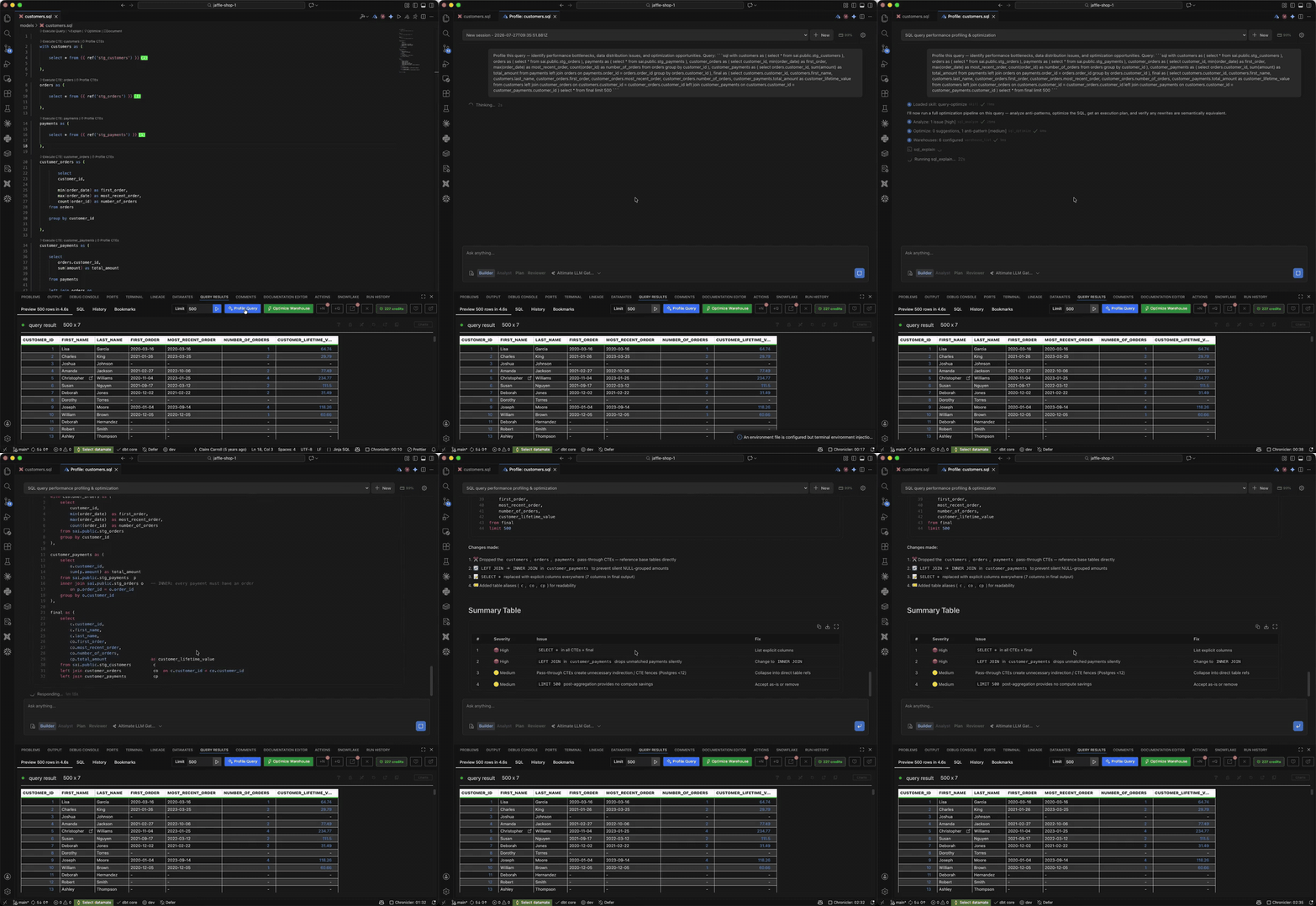
Once a query returns results, a "Profile this query" button appears in the "Query Results" toolbar. Click it to start an Altimate Code session that reviews your query for performance bottlenecks, data distribution issues and optimization opportunities.
Compare Query Results
You can save query results by opening in a tab. Then, make changes to a query and run query results. Now, you can compare previous results with new results easily as below:
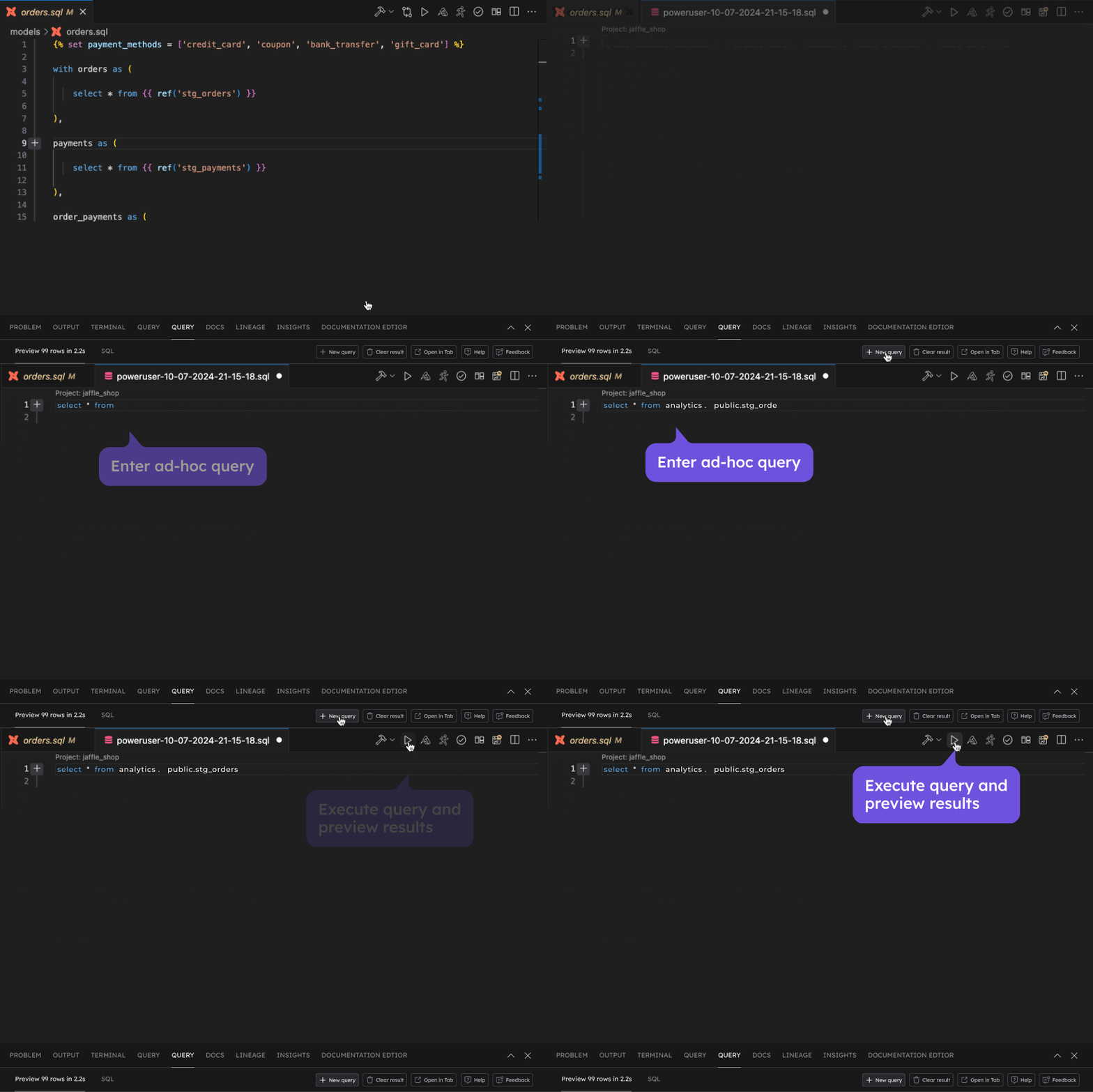
Run an ad-hoc query
You can run ad hoc SQL queries or dbt Models in the "Query Results" tab