Set up Altimate Workspaces in VS Code
The Altimate Workspaces extension brings a workspace's integrations, knowledge, memory and skills to VS Code's AI agent.
1. Install the extension
Install Altimate Workspaces from the VS Code Marketplace, version 0.10.0 or later.
2. Sign in
The quickest way is from the web app. Open Workspaces, click Set up IDE, and choose VS Code. This signs the extension in with your credentials and opens its Workspaces panel. You can do the same for one workspace with Open in → VS Code.
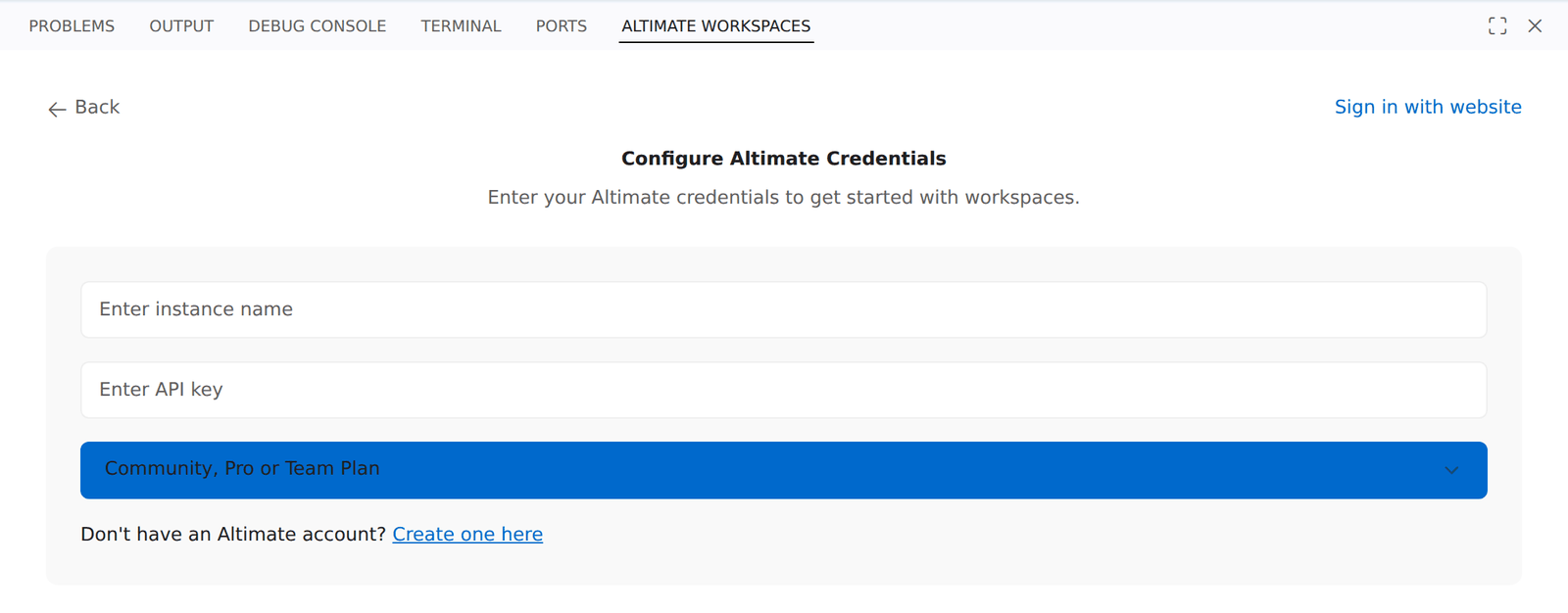
To sign in from the extension instead, open its Altimate Workspaces panel, click Setup Credentials, then Configure manually, and enter:
- your plan: Community, Pro or Team Plan, or Enterprise Plan
- your Instance Name, for example
mycompany - your API Key
Find your instance name and API key in the web app, under Settings → API Key. If you already use an API key with Power User for dbt, the same one works here.
3. Choose a workspace
In the Altimate Workspaces panel, pick a workspace. The panel opens in VS Code's bottom panel, next to Terminal. The status bar shows the workspace you're using, or Select workspace if you haven't picked one. Click it to open the panel. A red gear on a workspace means one of its integrations needs something on this machine, such as the Power User for dbt extension. Click the gear to see which.
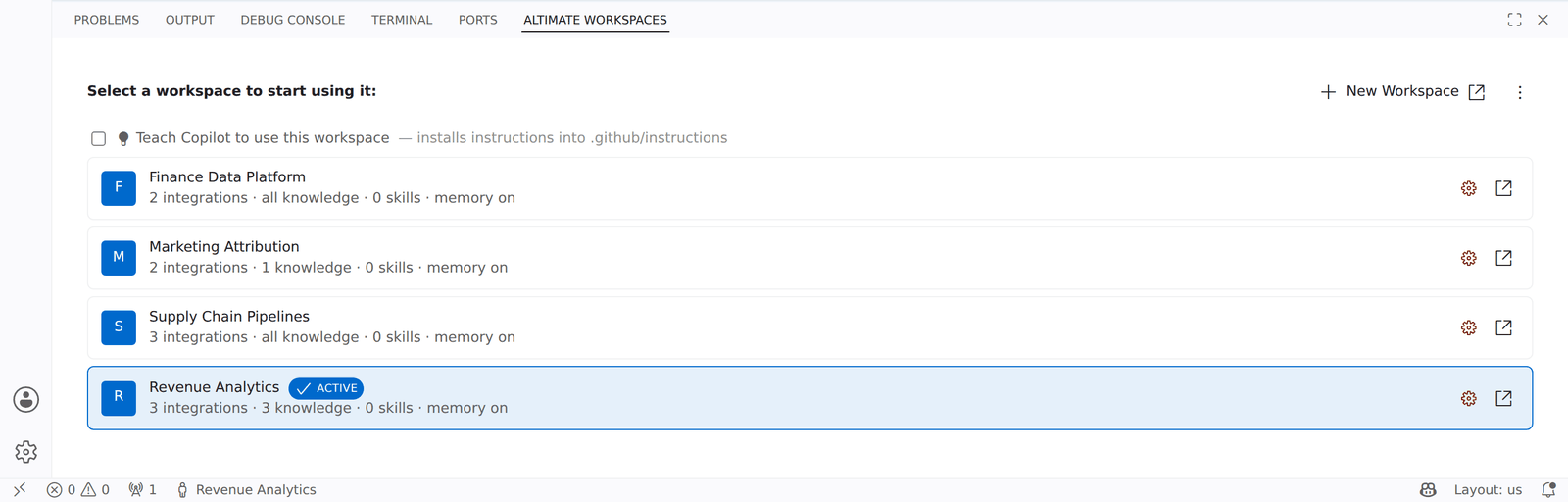
No workspace yet? Create your first workspace opens the web app's New workspace page. See Create a workspace.
4. Check it's working
- The extension registers the workspace's MCP server as
datamatein.vscode/mcp.jsonin your project, so agents in VS Code can use its tools. - The Command Palette (
Ctrl+Shift+P/Cmd+Shift+P) lists Altimate Workspaces: commands. Run Altimate Workspaces: Run Altimate Diagnostics to check the connection.
If you don't see these, reload the window.
Power User for dbt
If Power User for dbt is installed and not signed in yet, the extension signs it in with the same credentials.
Interactive demo
This walkthrough was recorded before the rename, so it shows the old Datamates names. The steps are the same.
Related: Use a workspace · Skills in VS Code