Connect any MCP client with the remote MCP server
Any MCP client can use a workspace through Altimate's hosted MCP server, with nothing to install on your machine. The web app writes the client configuration for you.
Set it up
- In the web app, open the workspace and click Open in → Remote MCP server.
- Select connections: for each of the workspace's integrations, choose the connection the server should use. These are connections saved in the web app, on the workspace's Integrations tab. The first connection for each integration is selected for you, and + adds a new one.
- Copy configuration: choose Streamable HTTP or SSE, whichever your client supports, and copy the configuration into your MCP client's settings. For Cursor, change
typetostreamable-http.
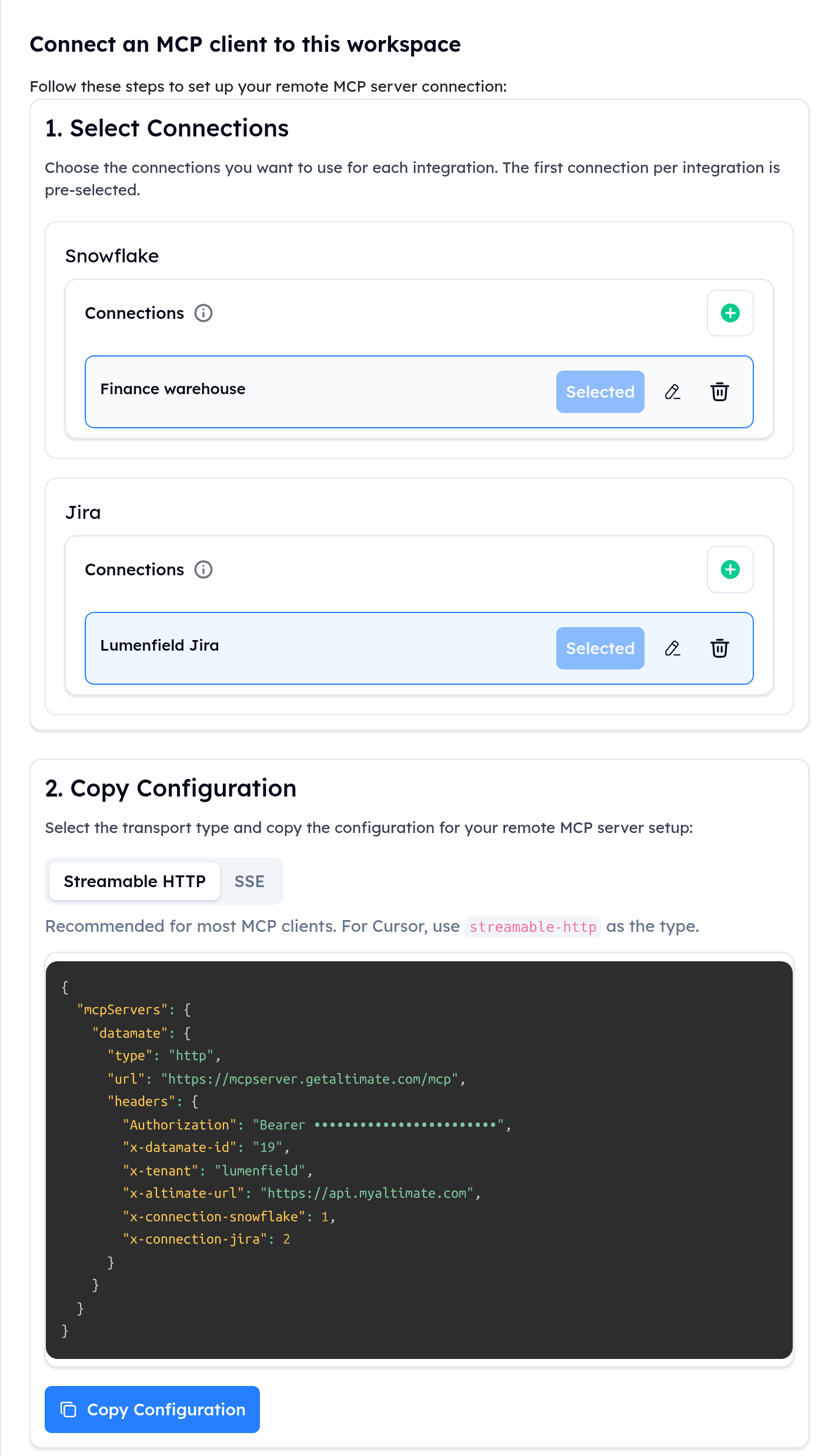
The configuration has this shape. Copy yours from the web app, which fills in every value:
{
  "mcpServers": {
    "datamate": {
      "type": "http",
      "url": "https://mcpserver.getaltimate.com/mcp",
      "headers": {
        "Authorization": "Bearer <your API token>",
        "x-datamate-id": "<workspace id>",
        "x-tenant": "<your instance name>",
        "x-altimate-url": "<your Altimate API URL>",
        "x-connection-snowflake": "<connection id>"
      }
    }
  }
}
There is one x-connection-… header for each connection you selected.
Keep the configuration private
The configuration contains your API token
Treat it like a password. Don't commit it to a repository, and don't share it.
The hosted server runs on Altimate's infrastructure and uses the connections saved in the web app. Tool calls, and the data they return, pass through Altimate's servers. If you would rather keep connections on your machine, use a local setup instead. See the Security FAQ for more.