Share a workspace
A workspace is private to its owner until the owner shares it. Only the owner can change who a workspace is shared with.
Sharing options
| Option | Who can access and use the workspace |
|---|---|
| Private | Only you |
| Public | All members of your organization |
| Specific people and teams | Only the people and teams you choose |
Teams are available when your organization uses role-based access control. Without it, the option is Specific people.
Change who a workspace is shared with
- Open the workspace and go to its Overview tab.
- Under Sharing, choose an option. For Specific people and teams, add the people and teams.
- Save your change.
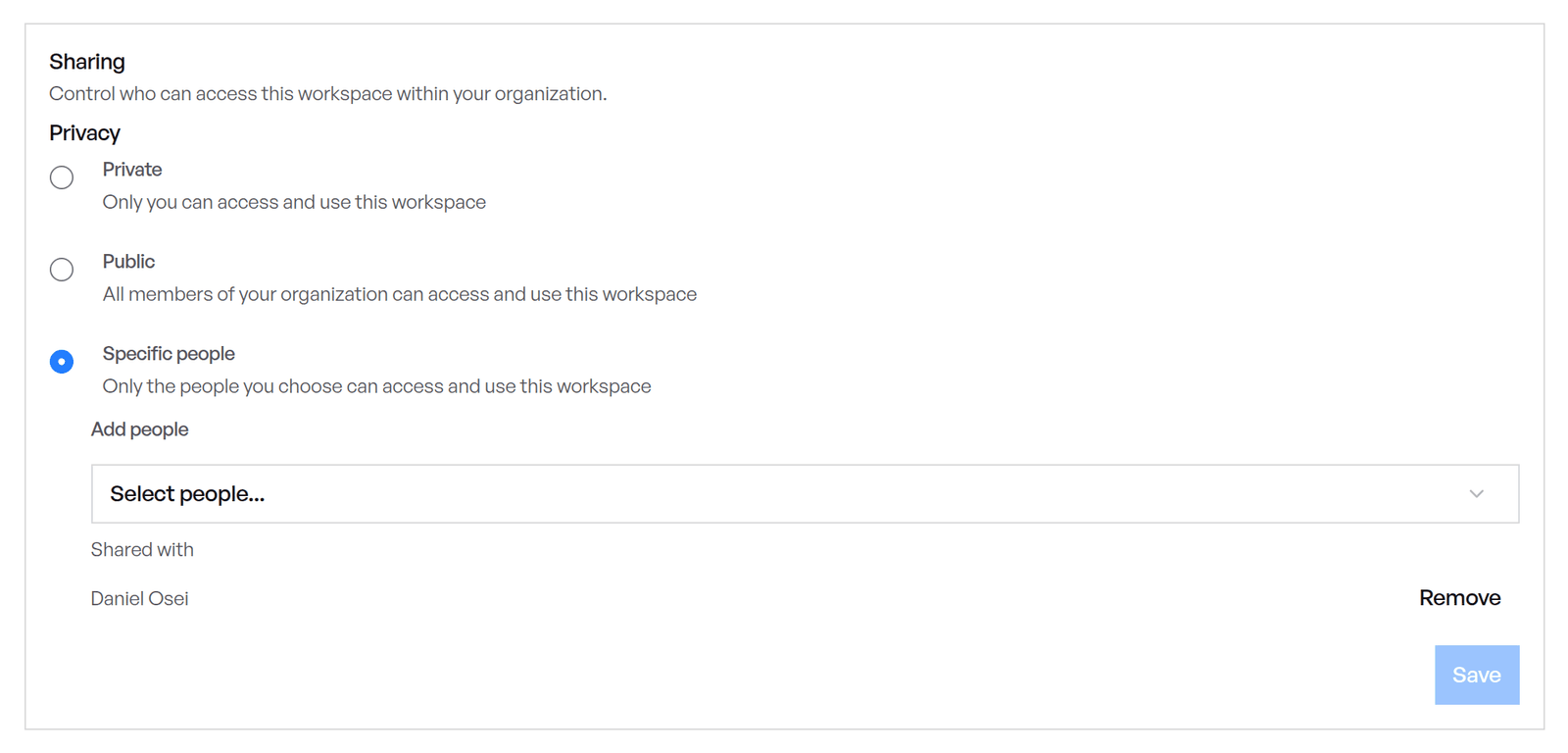
When you create a workspace, the Privacy step offers only Private and Public. To share it with specific people or teams, create it first, then change its sharing on the Overview tab.
What the people you share with get
- An email. Each person you add receives an email saying you shared the workspace with them, with a link to it. Sharing with a team doesn't send one.
- The workspace itself. When they use it, they get its integrations, knowledge, memory and skills. Shared memory needs the
datamateMCP server (@altimateai/datamate) 0.7.2 or later. The Altimate Workspaces extension includes it from 0.10.0. - Use, not ownership. Only the owner can change the workspace's setup, attach skills to it, or change who it's shared with. If a workspace is public and owned by someone else, its integrations are read-only for you.
Credits
Using a shared workspace draws on your organization's credits, the same as using your own. The usage is recorded against the person who used it.