Skills
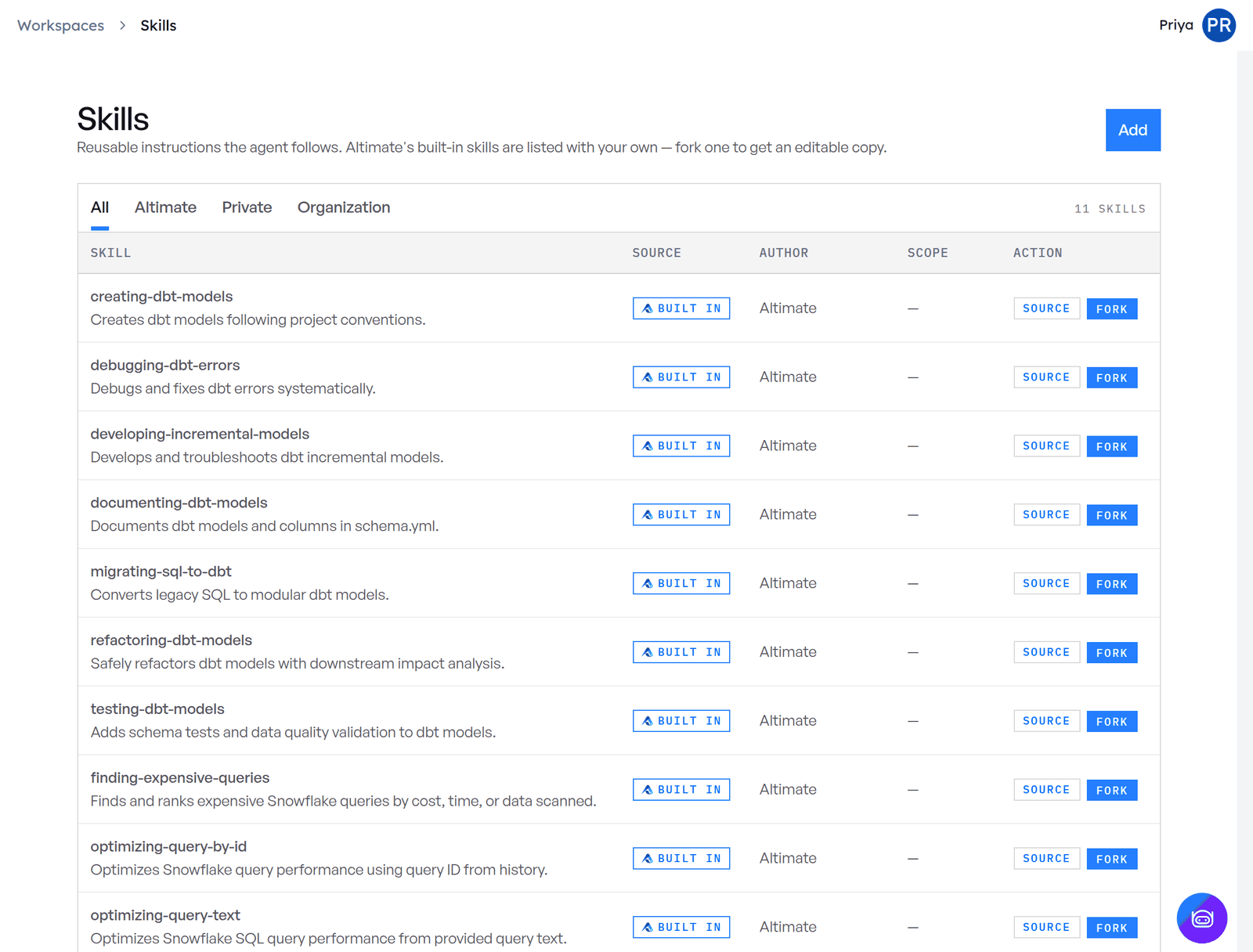
A skill is a set of written instructions your agent follows for a particular kind of task, such as how your team reviews a finance schema. Skills live in your skills library, and you attach them to the workspaces that should follow them.
Add a skill to your library
In the Altimate web app, open Workspaces → Skills from the sidebar, then choose one:
- Write skill instructions: give the skill a Name, a Description saying when the agent should use it, and the Instructions themselves.
- Upload skill bundle: select the skill's folder, which holds its
SKILL.mdand anyreferences/andscripts/folders, or select its files.
Choose its Scope:
| Scope | Who can see and attach it |
|---|---|
| Private to workspace | Only you |
| Share with organization | Anyone in your organization |
Your library also lists Altimate's built-in skills, and skills that others in your organization have shared. Only a skill's author can change it. To adapt someone else's skill, Fork it: a copy lands in your library, where you can edit it freely, and it stops following changes to the original.
Attach skills to a workspace
Open the workspace, go to its Skills tab and click Add skills. You can also open a skill and use Attach to workspaces.
Only a workspace's owner can attach skills to it. Removing a skill from a workspace leaves it in your library; the workspace just stops following it.
Where agents pick up skills
- Altimate Code: in a linked project, run
/workspaceand choose Refresh to pull the workspace's skills into the project. You can also publish one of the project's own skills to the workspace withaltimate-code skill publish <name>. See Use a workspace in Altimate Code and Skills in Altimate Code. - VS Code and Cursor: the extension writes the selected workspace's skills into your project as instruction files that the editor's agent reads:
.cursor/rules/*.mdcin Cursor, and.github/instructions/*.instructions.mdin VS Code for GitHub Copilot. If several folders are open, the files go into the first one. This turns on when you finish signing in to the extension. To stop it, turn off thealtimate.enableSkillDeliverysetting.